WIRESHARK
Understanding Wireshark
Disclaimer
Contains:
How to Save the captured packets as "pcapng" extensions.
How to use Filters.
How to use Statistics Menu.
How to use MaxMind database and Endpoints Maps.
Reference
- GeoLite2 Free Geolocation Data: https://dev.maxmind.com/geoip/geolite2-free-geolocation-data
- Wireshark basics by Chris Greer
Understanding Wireshark
How to Save the captured packets as "pcapng" extensions
Before starting to capture packets,
Capture -> options
output format -> pcapng
Create new files automatically with 2 files, small size of 500Mb. This options can be used to create smaller files for easier analysis
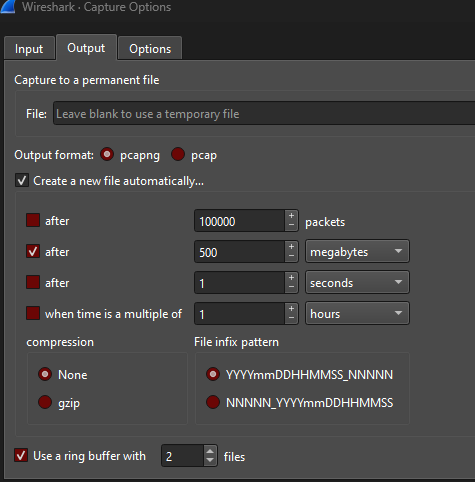
|
| Saving the capture in small pcap files for analysis |
How to use Filters:
Before Capture
- Capture Filters
Before starting the capture, Setting up filter criteria before starting the capturing of the packets.
- e.g. TCP - only the TCP packets will be captured and no other packet information's will be captured
- Sample filters, port 80, port 53, host 192.168.1.5
After capture
Display filters
CConversation Filters
- Arp
- Ip
- Ip.addr == 192.168.1.5
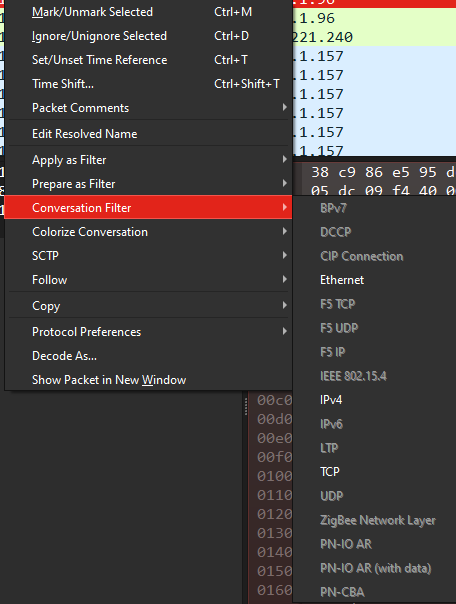
|
| Conversation Filters |
Prepare as a Filter
Will have option to add along with conversation filter options
- (ip.addr eq 192.168.1.157 and ip.addr eq 513.184.133.58) && (tcp)
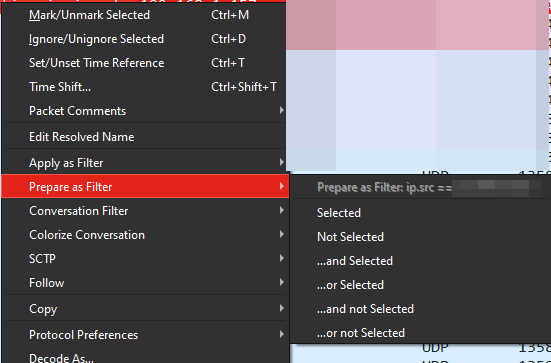
|
| Prepare as a Filter |
Not filter:
- not arp
- not(arp or ipv6)
- Tcp.port in{80 443 8080}
- !(arp or stp or lldp or cdp or tcp)
Text Filters
- Case sensitive: - frame contains google
How to use Statistics Menu
Statistics menu option
Name Resolution:
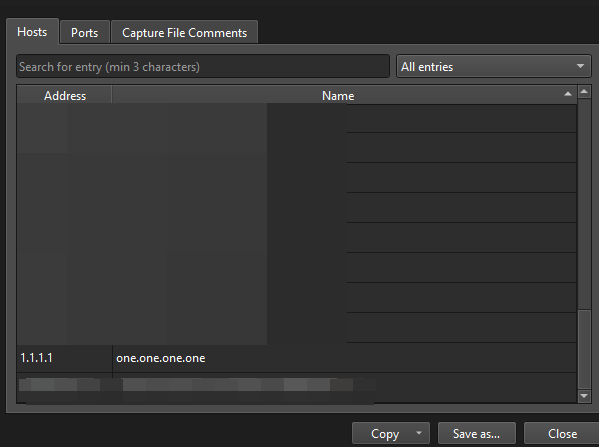
|
| Statistics -> Resolved Addresses |
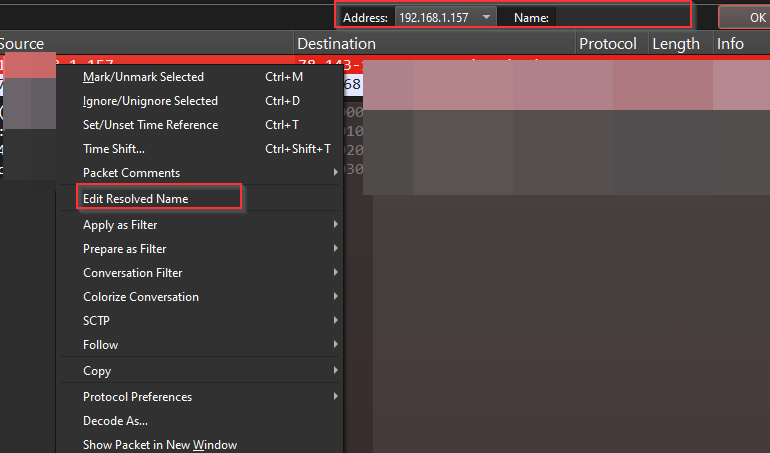
Adding custom name to the IP address
- Right click on the IP address and select edit resolved names add a name
|
|
Adding Custom names IP address |
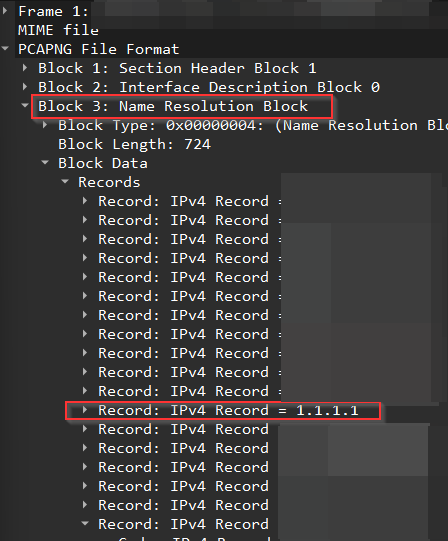
Name resolution Block
|
| name resolution block |
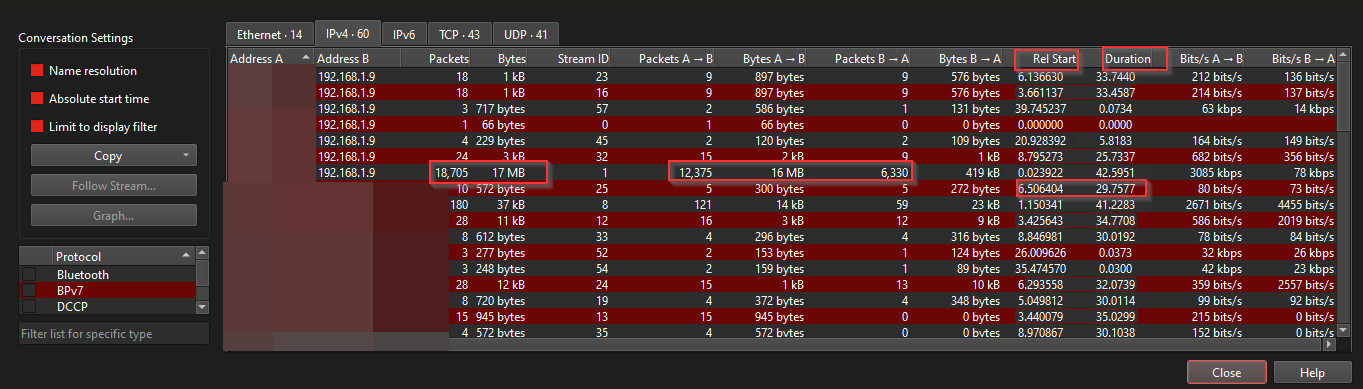
Statistics -> conversations
This window will provide the overall summary of packets happening between addresses, bytes, ports and more. This view allows to understand what's going on with between the IP-address.
- If there is any malicious activity or port scanning can be found using this summary table.
- Filter option: Right click on any address and select apply as filter to get conversation b/w the 2addresses
|
| Statistics -> conversations |
How to use MaxMind database and Endpoints Maps:
Geo location:
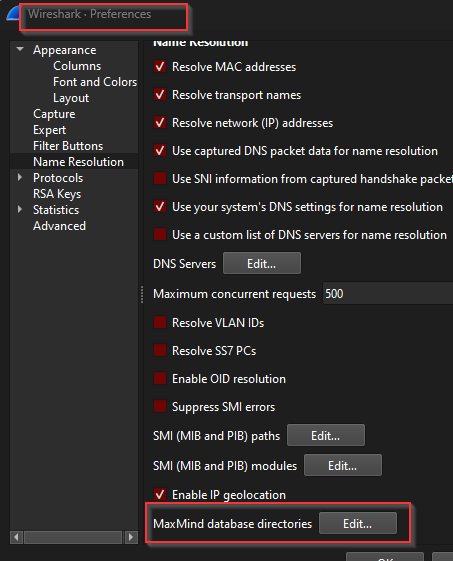
Download the file - free version from - dev.Maxmind.com [geo2lite free geolocation data]
- Edit -> preferences -> MaxMindDatabase -> selected the download file
|
| MaxMindDatabase |
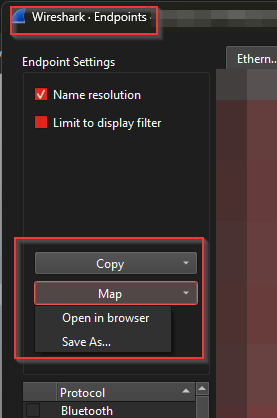
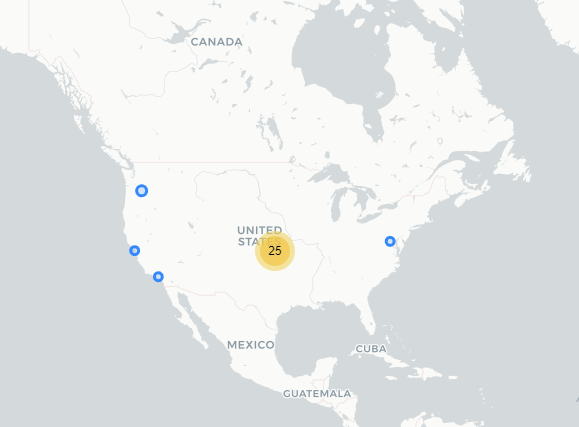
Statistics ->Endpoint -> map ->open on browser
|
|
Endpoint-Maps |
|
| map |
|
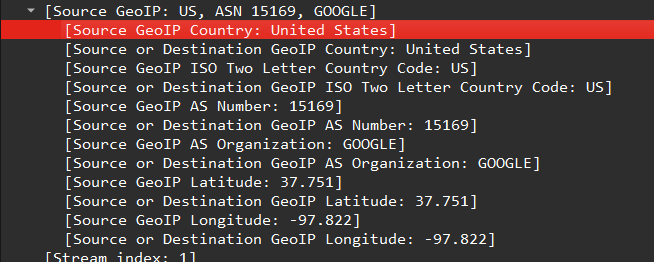
| source GEO IP |
- Right click on the “source GeoIP” set as selected filter :- ip.geoip.src_country == "United States"
Comments
Post a Comment