DevOps hands-On
DEVOPS Hands-on
Deploying Azure VM using Terraform
Overview:
- Deploying Azure VM using Terraform
- Adding Load balancer - Frontend IP, backend pool, backend IP address
- Adding monitoring using cAdvisor, Prometheus, Grafana
- Adding Portainer.io
- Creating 3 instance of Docker container
- Deploying dockers using shell script
Disclaimer
Table Of contents
- Deploying Azure VM using Terraform and Adding monitoring using cAdvisor
- References:
- Error resolution
- Step 01 : Install Terraform on windows
- Step 02 : Install Azure CLI on Windows
- Step 03 : Install VS code
- Step 04: Using Terraform creating VM
- Step 04.1: versions.tf
- Step 04.2: vm.tf
- Creating with Private IP address only
- Now to get the latest linux vm version use the following command
- Now initiating connection
- Checking configuration success without any error to Terraform
- Now Applying the changes to terraform to Azure
- Step 04.3 : Now to create : public IP address
- Updating the changes in the terraform to Azure.
- Step 04.4: All set getting in to Azure VM
- Step 05: Now trying to perform Port tutorial with Dashboard with cAdvisor
- Step 05.1 :This is a simple Docker image : Hello World
- Step 05.2 : Creating shell script to automate the deployment of docker image: Hello world
- Step 05.3 : Creating shell script to automate the deployment of docker image and dashboard monitoring images
- Providing executing permissions
- Final Output: Expected :
- Step 06: Creating Load Balancer
- Step 06.1: Adding NAT inbound rules to enable the ip address
- Step 06.2: Connecting to a VM and deploying the docker script file.
- Step 07: Adding Inbound Rules to VM layer
- Final Output Expected:
- cAdvisor : Demo Docker-cadvisor-1
- Demo Docker-prometheus-1 : http://132.18.679.965:9090
- Demo Docker-grafana-1 : http://132.18.679.965:3000/login
- Docker instance 1 demo docker-Dockerfile-1 : http://132.18.679.965:32768/
- Docker instance 2 demo docker-Dockerfile-2 : http://132.18.679.965:32769/
- Docker instance 3 demo docker-Dockerfile-3 : http://132.18.679.965:32770/
- Appendix Version 1
- Demo Docker-cadvisor-1 : http://132.18.679.965:8080/containers/
************************************************************************************************
References:
- Terraform Tutorial | How to Create an AZURE VM with TERRAFORM | PUBLIC IP + PRIVATE IP
- https://www.youtube.com/watch?v=T1WxrEwyyKU
- Azure Infrastructure with Terraform - Lab - Azure Load Balancer
- https://www.youtube.com/watch?v=SpSJZmaGvFk
- https://registry.terraform.io/providers/hashicorp/azurerm/latest
- https://medium.com/@sohammohite/docker-container-monitoring-with-cadvisor-prometheus-and-grafana-using-docker-compose-b47ec78efbc
- https://medium.com/@varunjain2108/monitoring-docker-containers-with-cadvisor-prometheus-and-grafana-d101b4dbbc84
- https://github.com/crccheck/docker-hello-world
- https://medium.com/@tomer.klein/step-by-step-tutorial-installing-docker-and-docker-compose-on-ubuntu-a98a1b7aaed0
- https://webhostinggeeks.com/howto/how-to-uninstall-docker-on-ubuntu/
- https://learn.microsoft.com/en-us/cli/azure/install-azure-cli-windows?tabs=azure-cli
- https://webdock.io/en/docs/how-guides/docker-guides/how-to-install-and-run-docker-containers-using-docker-compose
- https://terraformguru.com/terraform-real-world-on-azure-cloud/14-Azure-Standard-LoadBalancer-Basic/
- https://registry.terraform.io/providers/hashicorp/azurerm/latest/docs/resources/network_security_group
Error resolution:
- grafana_grafana_1 exited with code 1
- You need to add both UID (user ID) and GID (group ID)
- https://community.grafana.com/t/new-docker-install-with-persistent-storage-permission-problem/10896/13
- | exec /usr/bin/cadvisor: exec format error
- https://github.com/google/cadvisor/issues/2564
- You most probably have a CPU architecture mismatch - cAdvisor image aimed at arch X (ex. amd64), but running on host with arch Y (ex. arm).
- publicipaddressinuse resource /frontend-ip is referencing public ip address that is already allocated to resource ipconfigurations/internal
- Not to declare public ip separately while using Load balancer with front end ip.
- Azure vm Cannot create more than 3 public IP addresses for this subscription in this region
- Disassociate other public ip addresses in azure and then delete them.
************************************************************************************************
Github.com
https://github.com/gouti1454/DevOps-demo
************************************************************************************************
Step 01 : Install Terraform on windows
PS C:\Users\G> choco install terraform
PS C:\Users\G> terraform -help
Step 02 : Install Azure CLI on Windows
https://learn.microsoft.com/en-us/cli/azure/install-azure-cli-windows?tabs=azure-cli
- Creating Azure account on the web, to connect from desktop
- PS C:\Users\G> az version
- PS C:\Users\G> az login
- PS C:\Users\G> az -help
- PS C:\Users\G> az account list
Step 03 : Install VS code
https://code.visualstudio.com/download
https://registry.terraform.io/providers/hashicorp/azurerm/latest/docs/resources/linux_virtual_machine
Step 04: Using Terraform creating VM
Step 04.1: versions.tf
- Search in the below link
- https://registry.terraform.io/providers/hashicorp/azurerm/latest
- Click on user provider and copy the code to version.tf
//************//
terraform {
required_providers {
azurerm = {
source = "hashicorp/azurerm"
version = "3.97.1"
}
}
}
provider "azurerm" {
features {}
}
//************//
Step 04.2: vm.tf
- Creating with Private IP address only
- Click on the documentation
- https://registry.terraform.io/providers/hashicorp/azurerm/latest
- Search for virtual machine , select - azurerm linux virtuaL MACHINE
- Copy the content in to the file vm.tf
//************vm.tf******//
resource "azurerm_resource_group" "example" {
name = "example-resources"
location = "UK South"
}
resource "azurerm_virtual_network" "example" {
name
= "example-network"
address_space =
["10.0.0.0/16"]
location =
azurerm_resource_group.example.location
resource_group_name =
azurerm_resource_group.example.name
}
resource "azurerm_subnet" "example" {
name
= "internal"
resource_group_name =
azurerm_resource_group.example.name
virtual_network_name =
azurerm_virtual_network.example.name
address_prefixes = ["10.0.2.0/24"]
}
resource "azurerm_network_interface" "example" {
name
= "example-nic"
location =
azurerm_resource_group.example.location
resource_group_name =
azurerm_resource_group.example.name
ip_configuration {
name
= "internal"
subnet_id
= azurerm_subnet.example.id
private_ip_address_allocation = "Dynamic"
public_ip_address_id
= azurerm_public_ip.example.id
}
}
resource "azurerm_linux_virtual_machine" "example" {
name
= "example-machine"
resource_group_name =
azurerm_resource_group.example.name
location =
azurerm_resource_group.example.location
size
= "Standard_F2"
admin_username = "adminuser"
network_interface_ids = [
azurerm_network_interface.example.id,
]
admin_ssh_key {
username = "adminuser"
public_key = file("vm.pub")
}
os_disk {
caching
= "ReadWrite"
storage_account_type = "Standard_LRS"
}
source_image_reference {
publisher = "Canonical"
offer =
"0001-com-ubuntu-server-jammy"
sku = "22_04-lts"
version = "latest"
}
}
//******end*****//
- Now generating ssh-key pair and giving the file name as vm
- PS C:\Users\G> ssh-keygen
Generating public/private rsa key pair.
Enter file in which to save the key (C:\Users\G/.ssh/id_rsa):
vm
Enter passphrase (empty for no passphrase):
Enter same passphrase again:
Your identification has been saved in vm
Your public key has been saved in vm.pub
Now to get the latest linux vm version use the following command
PS C:\Users\Gouti1454_PC> az vm image list
Now initiating connection
PS D:\devopsGIT\VM-terra> terraform init

|
| terraform init |
Checking configuration success without any error to Terraform
- PS D:\devopsGIT\VM-terra> terraform.exe plan
Plan: 5 to add, 0 to change, 0 to destroy.
─────────────────────────────────────────────────────────────────────────────────────────────────────────────────────────────────────────
Note: You didn't use the -out option to save this plan, so Terraform
can't guarantee to take exactly these actions if you run
"terraform
apply" now.
Now Applying the changes to terraform to Azure
- PS D:\devopsGIT\VM-terra> Terraform apply

|
| Terraform apply |
Step 04.3 : Now to create : public IP address
- Searching for : public ip
https://registry.terraform.io/providers/hashicorp/azurerm/latest/docs/resources/public_ip
//***********//
resource "azurerm_public_ip" "example" {
name =
"acceptanceTestPublicIp1"
resource_group_name = azurerm_resource_group.example.name
location =
azurerm_resource_group.example.location
allocation_method = "Static"
tags = {
environment = "Production"
}
}
//***********//
- Now updating the vm.tf
//****version 2*********//
resource "azurerm_resource_group" "example" {
name = "example-resources"
location = "UK South"
}
resource "azurerm_virtual_network" "example" {
name =
"example-network"
address_space =
["10.0.0.0/16"]
location =
azurerm_resource_group.example.location
resource_group_name =
azurerm_resource_group.example.name
}
resource "azurerm_subnet" "example" {
name
= "internal"
resource_group_name =
azurerm_resource_group.example.name
virtual_network_name =
azurerm_virtual_network.example.name
address_prefixes = ["10.0.2.0/24"]
}
resource "azurerm_public_ip" "example" {
name =
"vmpublicip01"
resource_group_name =
azurerm_resource_group.example.name
location =
azurerm_resource_group.example.location
allocation_method = "Static"
tags = {
environment = "Production"
}
}
resource "azurerm_network_interface" "example" {
name =
"example-nic"
location =
azurerm_resource_group.example.location
resource_group_name =
azurerm_resource_group.example.name
ip_configuration {
name
= "internal"
subnet_id
= azurerm_subnet.example.id
private_ip_address_allocation = "Dynamic"
public_ip_address_id
= azurerm_public_ip.example.id
}
}
resource "azurerm_linux_virtual_machine" "example" {
name =
"example-machine"
resource_group_name =
azurerm_resource_group.example.name
location =
azurerm_resource_group.example.location
size =
"Standard_F2"
admin_username = "adminuser"
network_interface_ids = [
azurerm_network_interface.example.id,
]
admin_ssh_key {
username = "adminuser"
public_key = file("vm.pub")
}
os_disk {
caching
= "ReadWrite"
storage_account_type = "Standard_LRS"
}
source_image_reference {
publisher = "Canonical"
offer =
"0001-com-ubuntu-server-jammy"
sku = "22_04-lts"
version = "latest"
}
}
//****END********//
- Adding the above code under
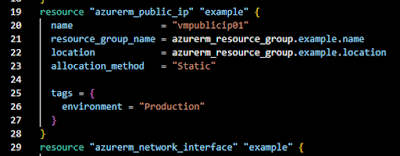
- Then adding the variable public key
public_ip_address_id =
azurerm_public_ip.example.id

Updating the changes in the terraform to Azure.
- PS D:\devopsGIT\VM-terra> terraform fmt
versionms.tf
vm.tf
- PS D:\devopsGIT\VM-terra> terraform.exe apply
Apply complete! Resources: 1 added, 1 changed, 0 destroyed.
Step 04.4: All set getting in to Azure VM
- While using the private key, need to do the following changed on the private key downloaded
- Demokey.prem -> right click->
- properties->security->advanced->
- disable inheritance->remove other users other than admin.
- Copy the private key “vm” & “vm.pub” in same folder as other files “D:\devopsGIT\VM-terra”
- Open Terminal as admin
PS D:\devopsGIT\VM-terra> ssh -i vm adminuser@178.0.0.1
adminuser@example-machine:~$
Result Able to get into VM using SSH
************************************************************************************************
Step 05: Now trying to perform Port tutorial with Dashboard with cAdvisor
Step 05.1 :This is a simple Docker image : Hello World
- docker pull chuckwired/port-tutorial
- adminuser@example-machine:~$ sudo docker run -d -p 8081:8000 chuckwired/port-tutorial /usr/bin/nodejs /home/hello-world/app.js
Unable to find image 'chuckwired/port-tutorial:latest'
locally
latest: Pulling from chuckwired/port-tutorial
docker: [DEPRECATION NOTICE] Docker Image Format v1 and Docker
Image manifest version 2, schema 1 support is disabled by default
and will be removed in an upcoming release. Suggest the author of
docker.io/chuckwired/port-tutorial:latest to upgrade the image to
the OCI Format or Docker Image manifest v2, schema 2. More
information at
https://docs.docker.com/go/deprecated-image-specs/.
See 'docker run --help'.
Since the Docker image : "'chuckwired/port-tutorial" has been
deprecated, using another latest version as below.
- Use the following link to obtain
- https://github.com/crccheck/docker-hello-world
- Testing the docker image manually
- sudo docker run -d --rm --name 01web-test -p 8079:8000 crccheck/hello-world
- sudo docker run -d --rm --name 02web-test -p 8089:8000 crccheck/hello-world
- sudo docker run -d --rm --name 03web-test -p 8099:8000 crccheck/hello-world
Step 05.2 : Creating shell script to automate the deployment of docker image: Hello world
- azureuser@DemoLinux:~/dockerfile$ sudo cat docscript.sh
//****version 1 *********//
#!/bin/bash
# Set the image name and version
IMAGE_NAME="my-app-02"
IMAGE_VERSION="2.0"
# Create a new directory for the Dockerfile and build context
#mkdir -p ${IMAGE_NAME}-${IMAGE_VERSION}
#cd ${IMAGE_NAME}-${IMAGE_VERSION}
# Create a new Dockerfile
cat << EOF > Dockerfile
FROM busybox:latest
ENV PORT=8000
LABEL maintainer="Chris <c@crccheck.com>"
# EXPOSE $PORT
HEALTHCHECK CMD nc -z localhost $PORT
# Create a basic webserver and run it until the container is
stopped
CMD echo "httpd started" && trap "exit 0;" TERM INT; httpd
-v -p $PORT -h /www -f & wait
EOF
# Build the Docker image
docker build -t ${IMAGE_NAME}:${IMAGE_VERSION} .
# Run the Docker image
#docker run -p 8079:8000 -d ${IMAGE_NAME}:${IMAGE_VERSION}
crccheck/hello-world
sudo docker run -d --rm --name 01web-test -p 8079:8000
crccheck/hello-world
sudo docker run -d --rm --name 02web-test -p 8089:8000
crccheck/hello-world
sudo docker run -d --rm --name 03web-test -p 8099:8000
crccheck/hello-world
//****END********//
- azureuser@DemoLinux:~/dockerfile$ sudo docker ps

|
| docker ps |
Step 05.3 : Creating shell script to automate the deployment of docker image and dashboard monitoring images
- sudo nano docscript.sh
- portdemo@portDEMO:~/demodocker$ sudo cat docscript.sh
//****version 8 *********//
#!/bin/bash
#version 8
#sudo docker volume prune
#sudo docker container prune
#sudo rmdir prometheus.yml
#sudo rm Dockerfile
#sudo rm docker-compose.yml
sudo
apt
update
sudo
apt
upgrade
-y
sudo
apt
install
-y
ca-certificates
curl
gnupg
lsb-release
sudo
mkdir
-p
/etc/apt/keyrings
sudo
curl
-fsSL
https://download.docker.com/linux/ubuntu/gpg
|
sudo
gpg
--dearmor
-o
/etc/apt/keyrings/docker.gpg
sudo
echo "deb [arch=$(dpkg
--print-architecture) signed-by=/etc/apt/keyrings/docker.gpg]
https://download.docker.com/linux/ubuntu $(lsb_release -cs) stable"
|
sudo
tee
/etc/apt/sources.list.d/docker.list
>
/dev/null
sudo
apt
update
sudo
apt
install
-y
docker-ce
docker-ce-cli
containerd.io
docker-compose-plugin
#checking docker status
sudo
docker
run
hello-world
sudo
apt
install
docker
-y
sudo
systemctl
restart
docker &&
sudo
systemctl
enable
docker
sudo
curl
-L
https://github.com/docker/compose/releases/latest/download/docker-compose-$(uname -s)-$(uname -m)
-o
/usr/local/bin/docker-compose
sudo
chmod
+x
/usr/local/bin/docker-compose
sudo
ln
-s
/usr/local/bin/docker-compose
/usr/bin/docker-compose
# Set the image name and version
IMAGE_NAME="my-app-02"
IMAGE_VERSION="2.0"
# Create a new Dockerfile
cat
<< EOF
> Dockerfile
FROM busybox:latest
ENV PORT=8000
LABEL maintainer="Chris <c@crccheck.com>"
# EXPOSE $PORT
HEALTHCHECK CMD nc -z localhost $PORT
# Create a basic webserver and run it until the container is
stopped
CMD echo "httpd started" && trap "exit 0;" TERM INT;
httpd -v -p $PORT -h /www -f & wait
EOF
# Build the Docker image
docker
build
-t ${IMAGE_NAME}:${IMAGE_VERSION} .
# Run the Docker image
cat
<<EOF
>/home/adminuser/docker-compose.yml
version: '3.9'
services:
cadvisor:
image: gcr.io/cadvisor/cadvisor:latest
hostname: cadvisor
volumes:
- "/:/rootfs:ro"
- "/var/run:/var/run:ro"
- "/sys:/sys:ro"
-
"/var/lib/docker/:/var/lib/docker:ro"
- "/dev/disk/:/dev/disk:ro"
ports:
- "8080:8080"
prometheus:
image: prom/prometheus
volumes:
-
./prometheus.yml:/etc/prometheus/prometheus-scrape-config.yaml
ports:
- "9090:9090"
grafana:
image: grafana/grafana
user: "$UID:$GID"
volumes:
- ./data/grafana:/var/lib/grafana
ports:
- "3000:3000"
Dockerfile:
image: crccheck/hello-world
deploy:
mode: replicated
replicas: 3
ports:
- 8000
healthcheck:
test: curl --fail http://localhost || exit
1
interval: 10s
timeout: 3s
retries: 3
#health check starting healthy unhealthy is displayed against the
status under docker ps
EOF
chown
adminuser:adminuser
/home/adminuser/docker-compose.yml
sudo
/usr/local/bin/docker-compose
-f /home/adminuser/docker-compose.yml
up
-d
#// creating portainer.io for GUI dashboard
sudo
docker
volume
create
portainer_data
sudo
docker
run
-d
-p
8000:8000
-p
9443:9443
--name
portainer
--restart=always
-v
/var/run/docker.sock:/var/run/docker.sock
-v
portainer_data:/data
portainer/portainer-ce:latest
#sudo docker-compose ps
sudo
docker
ps
sudo
curl
ifconfig.me
//****END********//
- portdemo@portDEMO:~/demodocker$
Providing executing permissions
- sudo chmod +x docscript.sh
- sudo ./docscript.sh
- sudo docker-compose ps
Output: Expected :
- portdemo@portDEMO:~/demodocker$ sudo docker-compose ps
WARN[0000] /home/portdemo/demodocker/docker-compose.yml: `version`
is obsolete
NAME
IMAGE
COMMAND
SERVICE CREATED
STATUS
PORTS
demodocker-Dockerfile-1 crccheck/hello-world
"/bin/sh -c 'echo
\"h…" Dockerfile 12 seconds ago
Up 9 seconds (health: starting)
0.0.0.0:32769->8000/tcp, :::32769->8000/tcp
demodocker-Dockerfile-2 crccheck/hello-world
"/bin/sh -c 'echo
\"h…" Dockerfile 12 seconds ago
Up 9 seconds (health: starting)
0.0.0.0:32768->8000/tcp, :::32768->8000/tcp
demodocker-Dockerfile-3 crccheck/hello-world
"/bin/sh -c 'echo
\"h…" Dockerfile 12 seconds ago
Up 8 seconds (health: starting)
0.0.0.0:32770->8000/tcp, :::32770->8000/tcp
demodocker-cadvisor-1
gcr.io/cadvisor/cadvisor:latest "/usr/bin/cadvisor
-…" cadvisor 12 seconds ago
Up 9 seconds (health: starting)
0.0.0.0:8080->8080/tcp, :::8080->8080/tcp
demodocker-grafana-1 grafana/grafana
"/run.sh"
grafana 12 seconds ago
Up 9 seconds
0.0.0.0:3000->3000/tcp,
:::3000->3000/tcp
demodocker-prometheus-1 prom/prometheus
"/bin/prometheus --c…" prometheus 12
seconds ago Up 9 seconds
0.0.0.0:9090->9090/tcp, :::9090->9090/tcp
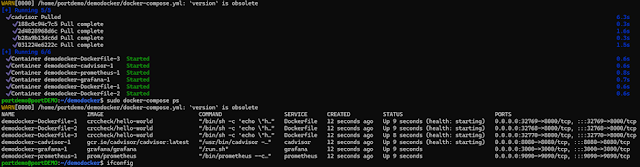
|
| Output docscript.sh |
Output after adding portainer.io
- adminuser@example-machine:~$ sudo docker ps

|
| docker ps |
Portainer.io : Dashboard showing Health status

|
| Portainer.io Health status |
Health Check for the three containers:
Trying to get health check in Docker compose file.
Dockerfile:
image: crccheck/hello-world
deploy:
mode: replicated
replicas: 3
ports:
- 8000
healthcheck:
test: ["CMD", "curl", "-f",
"http://localhost"]
interval: 10s
timeout: 3s
retries: 3
EOF
chown adminuser:adminuser /home/adminuser/docker-compose.yml
sudo /usr/local/bin/docker-compose -f
/home/adminuser/docker-compose.yml up -d
#// creating porttainer for GUI dashboard
#sudo docker volume create portainer_data
#sudo docker run -d -p 8000:8000 -p 9443:9443 --name portainer
--restart=always -v /var/run/docker.sock:/var/run/docker.sock -v
portainer_data:/data portainer/portainer-ce:latest
#sudo docker-compose ps
sudo docker ps
#Health check
sudo curl -f http://localhost:32768
sudo curl -f http://localhost:32769
sudo curl -f http://localhost:32770

|
| Curl Health Check |

|
| health: starting |

|
| health: healthy / unhealthy |
**********************************************************************************************
Step 06: Creating Load
Balancer
- Adding Load Balancer Resource
Search : load balancer -> azurerm_lb
now updating the Vm.tf with code.
- Adding Backend Pool Address For Load Balancer
- Adding Lb-Backend-Address-Pool-Address
- Adding Health Lb-Probe Load Balancer Probe Resource
- Adding Lb-Rule Load Balancer Rule.
- Next: The NAT rules are added using the format list in the link:
- azurerm_lb_nat_rule: https://registry.terraform.io/providers/hashicorp/azurerm/latest/docs/resources/lb
- The Virtual Machine can be connected using the Frontend IP.
- the connecting is enough to pull images and updates
- where as the open internet access is denied in basic NAT network outbound rule.
- In these NAT rules : Target VM, N/w IP to has to be included.
Version 7 will create the inbound rules in the load balance alone.
- There must be another inbound rules for the VM to all the connection from the load balance IP address to the VM IP address ports.
- The version 8 : addresses to add inbound rules to VM layer.
//**** vm.tf **** version 7*********//
resource
"azurerm_resource_group"
"aparito" {
name =
"aparito-resources"
location =
"UK South"
}
//Virtual n/w
resource
"azurerm_virtual_network"
"app_network" {
name
=
"app-network"
address_space
= ["10.0.0.0/16"]
location =
azurerm_resource_group.aparito.location
resource_group_name
=
azurerm_resource_group.aparito.name
}
//subnet
resource
"azurerm_subnet"
"SubnetA" {
name
=
"internal"
resource_group_name =
azurerm_resource_group.aparito.name
virtual_network_name
=
azurerm_virtual_network.app_network.name
address_prefixes
= ["10.0.2.0/24"]
}
//declaring public ip name
resource
"azurerm_public_ip"
"load_ip" {
name
=
"load_ip"
resource_group_name
=
azurerm_resource_group.aparito.name
location =
azurerm_resource_group.aparito.location
allocation_method
=
"Static"
sku
=
"Standard"
tags = {
environment =
"Production"
}
}
// declaring private ip and commenting the public address
since adding front end ip address
resource
"azurerm_network_interface"
"Nic_inter" {
name
=
"example-nic"
location =
azurerm_resource_group.aparito.location
resource_group_name
=
azurerm_resource_group.aparito.name
ip_configuration {
name
=
"internal"
subnet_id
= azurerm_subnet.SubnetA.id
private_ip_address_allocation =
"Dynamic"
//public_ip_address_id =
azurerm_public_ip.load_ip.id
}
depends_on = [
azurerm_virtual_network.app_network,
azurerm_subnet.SubnetA
]
}
// declaring load balancer
resource
"azurerm_lb"
"app_balancer" {
name
=
"app_balancer"
location =
azurerm_resource_group.aparito.location
resource_group_name
=
azurerm_resource_group.aparito.name
frontend_ip_configuration {
name
= "frontend-ip"
public_ip_address_id = azurerm_public_ip.load_ip.id
}
sku =
"Standard"
depends_on
= [azurerm_public_ip.load_ip]
}
//adding backend pool address name
resource
"azurerm_lb_backend_address_pool"
"PoolA" {
loadbalancer_id
= azurerm_lb.app_balancer.id
name =
"PoolA"
depends_on = [
azurerm_lb.app_balancer
]
}
// adding lb-backend-address-pool : ip address
resource
"azurerm_lb_backend_address_pool_address"
"appvm1_address" {
name
=
"appvm1"
backend_address_pool_id
=
azurerm_lb_backend_address_pool.PoolA.id
virtual_network_id =
azurerm_virtual_network.app_network.id
//ip_address =
"10.0.1.1"
ip_address
=
azurerm_network_interface.Nic_inter.private_ip_address
depends_on = [
azurerm_lb_backend_address_pool.PoolA
]
}
//ADDING health lb-probe
resource
"azurerm_lb_probe"
"ProbeA" {
loadbalancer_id
= azurerm_lb.app_balancer.id
name =
"ProbeA"
port =
80
depends_on = [
azurerm_lb.app_balancer
]
}
//adding lb-rule
resource
"azurerm_lb_rule"
"RuleA" {
loadbalancer_id
=
azurerm_lb.app_balancer.id
name
=
"RuleA"
protocol
=
"Tcp"
frontend_port
=
80
backend_port
=
80
frontend_ip_configuration_name
=
"frontend-ip"
backend_address_pool_ids
=
[azurerm_lb_backend_address_pool.PoolA.id]
probe_id
= azurerm_lb_probe.ProbeA.id
depends_on = [
azurerm_lb.app_balancer,
azurerm_lb_probe.ProbeA
]
}
//virtual machine example-machine
resource
"azurerm_linux_virtual_machine"
"example-machine" {
name
=
"example-machine"
resource_group_name
=
azurerm_resource_group.aparito.name
location =
azurerm_resource_group.aparito.location
size
=
"Standard_F2"
admin_username =
"adminuser"
network_interface_ids
= [
azurerm_network_interface.Nic_inter.id,
]
admin_ssh_key {
username =
"adminuser"
public_key =
file("vm.pub")
}
os_disk {
caching
= "ReadWrite"
storage_account_type =
"Standard_LRS"
}
source_image_reference {
publisher =
"Canonical"
offer =
"0001-com-ubuntu-server-jammy"
sku =
"22_04-lts"
version =
"latest"
}
}
//# Adding NAT rules for the ssh22 port
resource
"azurerm_lb_nat_rule"
"inbound_rule_22" {
resource_group_name
=
azurerm_resource_group.aparito.name
loadbalancer_id
=
azurerm_lb.app_balancer.id
name
=
"inbound-rule-22"
protocol
=
"Tcp"
frontend_port_start
=
22
frontend_port_end
=
22
backend_port
=
22
backend_address_pool_id =
azurerm_lb_backend_address_pool.PoolA.id
frontend_ip_configuration_name
=
"frontend-ip"
enable_floating_ip
=
false
depends_on = [
azurerm_lb.app_balancer,
azurerm_linux_virtual_machine.example-machine
]
}
//# Adding more NAT rules for other ports
//NAT rule for cadvisor 8080
resource
"azurerm_lb_nat_rule"
"inbound_rule_8080" {
resource_group_name
=
azurerm_resource_group.aparito.name
loadbalancer_id
=
azurerm_lb.app_balancer.id
name
=
"inbound-rule-8080"
protocol
=
"Tcp"
frontend_port_start
=
8080
frontend_port_end
=
8080
backend_port
=
8080
frontend_ip_configuration_name
=
"frontend-ip"
backend_address_pool_id =
azurerm_lb_backend_address_pool.PoolA.id
enable_floating_ip =
false
depends_on = [
azurerm_lb.app_balancer,
azurerm_linux_virtual_machine.example-machine
]
}
//NAT rule for prometheus 9090
resource
"azurerm_lb_nat_rule"
"inbound_rule_9090" {
resource_group_name
=
azurerm_resource_group.aparito.name
loadbalancer_id
=
azurerm_lb.app_balancer.id
name
=
"inbound-rule-9090"
protocol
=
"Tcp"
frontend_port_start
=
9090
frontend_port_end
=
9090
backend_port
=
9090
frontend_ip_configuration_name
=
"frontend-ip"
backend_address_pool_id =
azurerm_lb_backend_address_pool.PoolA.id
enable_floating_ip =
false
depends_on = [
azurerm_lb.app_balancer,
azurerm_linux_virtual_machine.example-machine
]
}
//NAT rule for Docker 8000
resource
"azurerm_lb_nat_rule"
"inbound_rule_8000" {
resource_group_name
=
azurerm_resource_group.aparito.name
loadbalancer_id
=
azurerm_lb.app_balancer.id
name
=
"inbound-rule-8000"
protocol
=
"Tcp"
frontend_port_start
=
8000
frontend_port_end
=
8000
backend_port
=
8000
frontend_ip_configuration_name
=
"frontend-ip"
backend_address_pool_id =
azurerm_lb_backend_address_pool.PoolA.id
enable_floating_ip =
false
depends_on = [
azurerm_lb.app_balancer,
azurerm_linux_virtual_machine.example-machine
]
}
//NAT rule for Docker instance1
resource
"azurerm_lb_nat_rule"
"inbound_rule_32770" {
resource_group_name
=
azurerm_resource_group.aparito.name
loadbalancer_id
=
azurerm_lb.app_balancer.id
name
=
"inbound-rule-32770"
protocol
=
"Tcp"
frontend_port_start
=
32770
frontend_port_end
=
32770
backend_port
=
32770
frontend_ip_configuration_name
=
"frontend-ip"
backend_address_pool_id =
azurerm_lb_backend_address_pool.PoolA.id
enable_floating_ip
=
false
depends_on = [
azurerm_lb.app_balancer,
azurerm_linux_virtual_machine.example-machine
]
}
//NAT rule for Docker instance2
resource
"azurerm_lb_nat_rule"
"inbound_rule_32771" {
resource_group_name
=
azurerm_resource_group.aparito.name
loadbalancer_id
=
azurerm_lb.app_balancer.id
name
=
"inbound-rule-32771"
protocol
=
"Tcp"
frontend_port_start
=
32771
frontend_port_end
=
32771
backend_port
=
32771
frontend_ip_configuration_name
=
"frontend-ip"
backend_address_pool_id =
azurerm_lb_backend_address_pool.PoolA.id
enable_floating_ip
=
false
depends_on = [
azurerm_lb.app_balancer,
azurerm_linux_virtual_machine.example-machine
]
}
//NAT rule for Docker instance2
resource
"azurerm_lb_nat_rule"
"inbound_rule_32772" {
resource_group_name
=
azurerm_resource_group.aparito.name
loadbalancer_id
=
azurerm_lb.app_balancer.id
name
=
"inbound-rule-32772"
protocol
=
"Tcp"
frontend_port_start
=
32772
frontend_port_end
=
32772
backend_port
=
32772
frontend_ip_configuration_name
=
"frontend-ip"
backend_address_pool_id =
azurerm_lb_backend_address_pool.PoolA.id
enable_floating_ip
=
false
depends_on = [
azurerm_lb.app_balancer,
azurerm_linux_virtual_machine.example-machine
]
}
//****END********//
Step 06.1: Adding NAT inbound rules in Load Balancer to enable the IP address
Adding NAT rules manually

|
|
Load balancer: inbound NAT rules |
Adding Through Terraform : Depends on Load balancer name
# Adding more NAT rules for the other ports
resource "azurerm_lb_nat_rule" "inbound_rule_9090" {
resource_group_name =
azurerm_resource_group.aparito.name
loadbalancer_id
= azurerm_lb.app_balancer.id
name
= "inbound-rule-9090"
protocol
= "Tcp"
frontend_port
= 9090
backend_port
= 9090
frontend_ip_configuration_name = "frontend-ip"
enable_floating_ip =
false
depends_on = [
azurerm_lb.app_balancer
]
}

|
| with load balancer |
Adding through Terraform : load balance name and Virtual machine ID
resource "azurerm_lb_nat_rule" "inbound_rule_9090" {
resource_group_name =
azurerm_resource_group.aparito.name
loadbalancer_id
= azurerm_lb.app_balancer.id
name
= "inbound-rule-9090"
protocol
= "Tcp"
frontend_port_start =
9090
frontend_port_end
= 9090
backend_port
= 9090
backend_address_pool_id =
azurerm_lb_backend_address_pool.PoolA.id
enable_floating_ip
= false
depends_on = [
azurerm_lb.app_balancer,
azurerm_linux_virtual_machine.example-machine
]
}
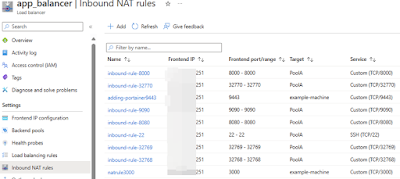
|
| NAT rule mapped to Backend Pool |
Step 06.2: Connecting to a VM and deploying the docker script file.
where there is no public IP address, using frontend IP address and port
mapping connecting to the VM as below.
PS C:\Users\G> ssh -i "C:\Users\G\exampledemo.pem"
adminuser@98.123.67.221 -p 22
- adminuser@example-machine:~$ sudo nano docscript.sh
- adminuser@example-machine:~$ sudo chmod +x docscript.sh
- adminuser@example-machine:~$ sudo ./docscript.sh
- adminuser@example-machine:~$ sudo docker-compose ps
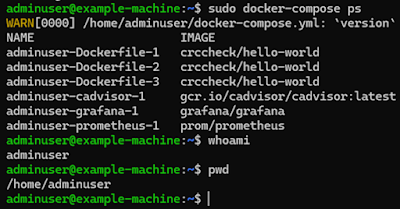
|
| Connecting VM |

|
| Azure Dashboard |
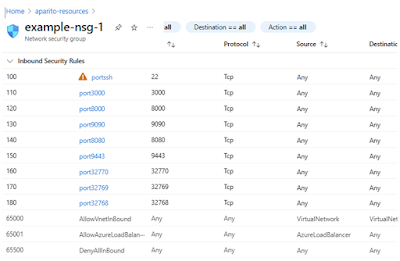
Step 07: Adding Inbound Rules to VM layer
The inbound rules for the VM allows the ports from the Load Balancer
public IP address to SSH connection.
|
| Security Inbound rule for VM |
//**** vm.tf **** version 8 *********//
resource
"azurerm_resource_group"
"aparito" {
name =
"aparito-resources"
location =
"UK South"
}
//Virtual n/w
resource
"azurerm_virtual_network"
"app_network" {
name
=
"app-network"
address_space
= ["10.0.0.0/16"]
location =
azurerm_resource_group.aparito.location
resource_group_name
=
azurerm_resource_group.aparito.name
}
//subnet
resource
"azurerm_subnet"
"SubnetA" {
name
=
"internal"
resource_group_name =
azurerm_resource_group.aparito.name
virtual_network_name
=
azurerm_virtual_network.app_network.name
address_prefixes
= ["10.0.2.0/24"]
}
//declaring public ip name
resource
"azurerm_public_ip"
"load_ip" {
name
=
"load_ip"
resource_group_name
=
azurerm_resource_group.aparito.name
location =
azurerm_resource_group.aparito.location
allocation_method
=
"Static"
sku
=
"Standard"
tags = {
environment =
"Production"
}
}
// declaring private ip and commenting the public address
since adding front end ip address
resource
"azurerm_network_interface"
"Nic_inter" {
name
=
"example-nic"
location =
azurerm_resource_group.aparito.location
resource_group_name
=
azurerm_resource_group.aparito.name
ip_configuration {
name
=
"internal"
subnet_id
= azurerm_subnet.SubnetA.id
private_ip_address_allocation =
"Dynamic"
//public_ip_address_id =
azurerm_public_ip.load_ip.id
}
depends_on = [
azurerm_virtual_network.app_network,
azurerm_subnet.SubnetA
]
}
// declaring load balancer
resource
"azurerm_lb"
"app_balancer" {
name
=
"app_balancer"
location =
azurerm_resource_group.aparito.location
resource_group_name
=
azurerm_resource_group.aparito.name
frontend_ip_configuration {
name
= "frontend-ip"
public_ip_address_id = azurerm_public_ip.load_ip.id
}
sku =
"Standard"
depends_on
= [azurerm_public_ip.load_ip]
}
//adding backend pool address name
resource
"azurerm_lb_backend_address_pool"
"PoolA" {
loadbalancer_id
= azurerm_lb.app_balancer.id
name =
"PoolA"
depends_on = [
azurerm_lb.app_balancer
]
}
// adding lb-backend-address-pool : ip address
resource
"azurerm_lb_backend_address_pool_address"
"appvm1_address" {
name
=
"appvm1"
backend_address_pool_id
=
azurerm_lb_backend_address_pool.PoolA.id
virtual_network_id =
azurerm_virtual_network.app_network.id
//ip_address =
"10.0.1.1"
ip_address
=
azurerm_network_interface.Nic_inter.private_ip_address
depends_on = [
azurerm_lb_backend_address_pool.PoolA
]
}
//ADDING health lb-probe
resource
"azurerm_lb_probe"
"ProbeA" {
loadbalancer_id
= azurerm_lb.app_balancer.id
name =
"ProbeA"
port =
80
depends_on = [
azurerm_lb.app_balancer
]
}
//adding lb-rule
resource
"azurerm_lb_rule"
"RuleA" {
loadbalancer_id
=
azurerm_lb.app_balancer.id
name
=
"RuleA"
protocol
=
"Tcp"
frontend_port
=
80
backend_port
=
80
frontend_ip_configuration_name
=
"frontend-ip"
backend_address_pool_ids
=
[azurerm_lb_backend_address_pool.PoolA.id]
probe_id
= azurerm_lb_probe.ProbeA.id
depends_on = [
azurerm_lb.app_balancer,
azurerm_lb_probe.ProbeA
]
}
//virtual machine example-machine
resource
"azurerm_linux_virtual_machine"
"example-machine" {
name
=
"example-machine"
resource_group_name
=
azurerm_resource_group.aparito.name
location =
azurerm_resource_group.aparito.location
size
=
"Standard_F2"
admin_username =
"adminuser"
network_interface_ids = [
azurerm_network_interface.Nic_inter.id,
]
admin_ssh_key {
username =
"adminuser"
public_key =
file("vm.pub")
}
os_disk {
caching
= "ReadWrite"
storage_account_type =
"Standard_LRS"
}
source_image_reference {
publisher =
"Canonical"
offer =
"0001-com-ubuntu-server-jammy"
sku =
"22_04-lts"
version =
"latest"
}
}
//Starting NAT inbound rules for the LoadBalancer
//# Adding NAT rules for the load balancer and mapping backend
pool: ssh22 port
resource
"azurerm_lb_nat_rule"
"inbound_rule_22" {
resource_group_name
=
azurerm_resource_group.aparito.name
loadbalancer_id
=
azurerm_lb.app_balancer.id
name
=
"inbound-rule-22"
protocol
=
"Tcp"
frontend_port_start
=
22
frontend_port_end
=
22
backend_port
=
22
backend_address_pool_id =
azurerm_lb_backend_address_pool.PoolA.id
frontend_ip_configuration_name
=
"frontend-ip"
enable_floating_ip
=
false
depends_on = [
azurerm_lb.app_balancer,
azurerm_linux_virtual_machine.example-machine
]
}
//# Adding more NAT rules : for the load balancer and mapping
backend pool:: for other ports
//NAT rule for cadvisor 8080
resource
"azurerm_lb_nat_rule"
"inbound_rule_8080" {
resource_group_name
=
azurerm_resource_group.aparito.name
loadbalancer_id
=
azurerm_lb.app_balancer.id
name
=
"inbound-rule-8080"
protocol
=
"Tcp"
frontend_port_start
=
8080
frontend_port_end
=
8080
backend_port
=
8080
frontend_ip_configuration_name
=
"frontend-ip"
backend_address_pool_id =
azurerm_lb_backend_address_pool.PoolA.id
enable_floating_ip =
false
depends_on = [
azurerm_lb.app_balancer,
azurerm_linux_virtual_machine.example-machine
]
}
//NAT rule for prometheus 9090
resource
"azurerm_lb_nat_rule"
"inbound_rule_9090" {
resource_group_name
=
azurerm_resource_group.aparito.name
loadbalancer_id
=
azurerm_lb.app_balancer.id
name
=
"inbound-rule-9090"
protocol
=
"Tcp"
frontend_port_start
=
9090
frontend_port_end
=
9090
backend_port
=
9090
frontend_ip_configuration_name
=
"frontend-ip"
backend_address_pool_id =
azurerm_lb_backend_address_pool.PoolA.id
enable_floating_ip =
false
depends_on = [
azurerm_lb.app_balancer,
azurerm_linux_virtual_machine.example-machine
]
}
//NAT rule for Docker 8000
resource
"azurerm_lb_nat_rule"
"inbound_rule_8000" {
resource_group_name
=
azurerm_resource_group.aparito.name
loadbalancer_id
=
azurerm_lb.app_balancer.id
name
=
"inbound-rule-8000"
protocol
=
"Tcp"
frontend_port_start
=
8000
frontend_port_end
=
8000
backend_port
=
8000
frontend_ip_configuration_name
=
"frontend-ip"
backend_address_pool_id =
azurerm_lb_backend_address_pool.PoolA.id
enable_floating_ip =
false
depends_on = [
azurerm_lb.app_balancer,
azurerm_linux_virtual_machine.example-machine
]
}
//NAT rule for Docker instance1
resource
"azurerm_lb_nat_rule"
"inbound_rule_32770" {
resource_group_name
=
azurerm_resource_group.aparito.name
loadbalancer_id
=
azurerm_lb.app_balancer.id
name
=
"inbound-rule-32770"
protocol
=
"Tcp"
frontend_port_start
=
32770
frontend_port_end
=
32770
backend_port
=
32770
frontend_ip_configuration_name
=
"frontend-ip"
backend_address_pool_id =
azurerm_lb_backend_address_pool.PoolA.id
enable_floating_ip
=
false
depends_on = [
azurerm_lb.app_balancer,
azurerm_linux_virtual_machine.example-machine
]
}
//NAT rule for Docker instance2
resource
"azurerm_lb_nat_rule"
"inbound_rule_32771" {
resource_group_name
=
azurerm_resource_group.aparito.name
loadbalancer_id
=
azurerm_lb.app_balancer.id
name
=
"inbound-rule-32771"
protocol
=
"Tcp"
frontend_port_start
=
32771
frontend_port_end
=
32771
backend_port
=
32771
frontend_ip_configuration_name
=
"frontend-ip"
backend_address_pool_id =
azurerm_lb_backend_address_pool.PoolA.id
enable_floating_ip
=
false
depends_on = [
azurerm_lb.app_balancer,
azurerm_linux_virtual_machine.example-machine
]
}
//NAT rule for Docker instance2
resource
"azurerm_lb_nat_rule"
"inbound_rule_32772" {
resource_group_name
=
azurerm_resource_group.aparito.name
loadbalancer_id
=
azurerm_lb.app_balancer.id
name
=
"inbound-rule-32772"
protocol
=
"Tcp"
frontend_port_start
=
32772
frontend_port_end
=
32772
backend_port
=
32772
frontend_ip_configuration_name
=
"frontend-ip"
backend_address_pool_id =
azurerm_lb_backend_address_pool.PoolA.id
enable_floating_ip
=
false
depends_on = [
azurerm_lb.app_balancer,
azurerm_linux_virtual_machine.example-machine
]
}
//Ending NAT inbound rules for the LoadBalancer
// Adding the Inbound rules for VM layer.
//adding nsg group :: Network security group example-nsg-1
(attached to subnet: internal)
resource
"azurerm_network_security_group"
"NSG-example" {
name
=
"example-nsg-1"
location =
azurerm_resource_group.aparito.location
resource_group_name
=
azurerm_resource_group.aparito.name
security_rule {
name
=
"portssh"
priority
= 100
direction
= "Inbound"
access
= "Allow"
protocol
= "Tcp"
source_port_range =
"*"
destination_port_range =
"22"
source_address_prefix =
"*"
destination_address_prefix =
"*"
}
security_rule {
name
=
"port3000"
priority
= 110
direction
= "Inbound"
access
= "Allow"
protocol
= "Tcp"
source_port_range =
"*"
destination_port_range =
"3000"
source_address_prefix =
"*"
destination_address_prefix =
"*"
}
security_rule {
name
=
"port8000"
priority
= 120
direction
= "Inbound"
access
= "Allow"
protocol
= "Tcp"
source_port_range =
"*"
destination_port_range =
"8000"
source_address_prefix =
"*"
destination_address_prefix =
"*"
}
security_rule {
name
=
"port9090"
priority
= 130
direction
= "Inbound"
access
= "Allow"
protocol
= "Tcp"
source_port_range =
"*"
destination_port_range =
"9090"
source_address_prefix =
"*"
destination_address_prefix =
"*"
}
security_rule {
name
=
"port8080"
priority
= 140
direction
= "Inbound"
access
= "Allow"
protocol
= "Tcp"
source_port_range =
"*"
destination_port_range =
"8080"
source_address_prefix =
"*"
destination_address_prefix =
"*"
}
security_rule {
name
=
"port9443"
priority
= 150
direction
= "Inbound"
access
= "Allow"
protocol
= "Tcp"
source_port_range =
"*"
destination_port_range =
"9443"
source_address_prefix =
"*"
destination_address_prefix =
"*"
}
security_rule {
name
=
"port32770"
priority
= 160
direction
= "Inbound"
access
= "Allow"
protocol
= "Tcp"
source_port_range =
"*"
destination_port_range =
"32770"
source_address_prefix =
"*"
destination_address_prefix =
"*"
}
security_rule {
name
=
"port32769"
priority
= 170
direction
= "Inbound"
access
= "Allow"
protocol
= "Tcp"
source_port_range =
"*"
destination_port_range =
"32769"
source_address_prefix =
"*"
destination_address_prefix =
"*"
}
security_rule {
name
=
"port32768"
priority
= 180
direction
= "Inbound"
access
= "Allow"
protocol
= "Tcp"
source_port_range =
"*"
destination_port_range =
"32768"
source_address_prefix =
"*"
destination_address_prefix =
"*"
}
}
resource
"azurerm_subnet_network_security_group_association"
"NSG-subnet-example" {
subnet_id
= azurerm_subnet.SubnetA.id
network_security_group_id
=
azurerm_network_security_group.NSG-example.id
}
// Ending nsg group : Network security group example-nsg-1
(attached to subnet: internal)
//adding nsg group associ with Network interface
resource
"azurerm_network_interface_security_group_association"
"NSG-NIC-example" {
network_interface_id =
azurerm_network_interface.Nic_inter.id
network_security_group_id
=
azurerm_network_security_group.NSG-example.id
}
//ending - nsg group associ with Network interface
// Ending the Inbound rules for VM layer.
//**** END*********//
Destroying VM
- terraform destroy
- terraform state list
- terraform apply -destroy
- terraform state rm -dry-run $(terraform state list)
- terraform state rm $(terraform state list)
- terraform refresh
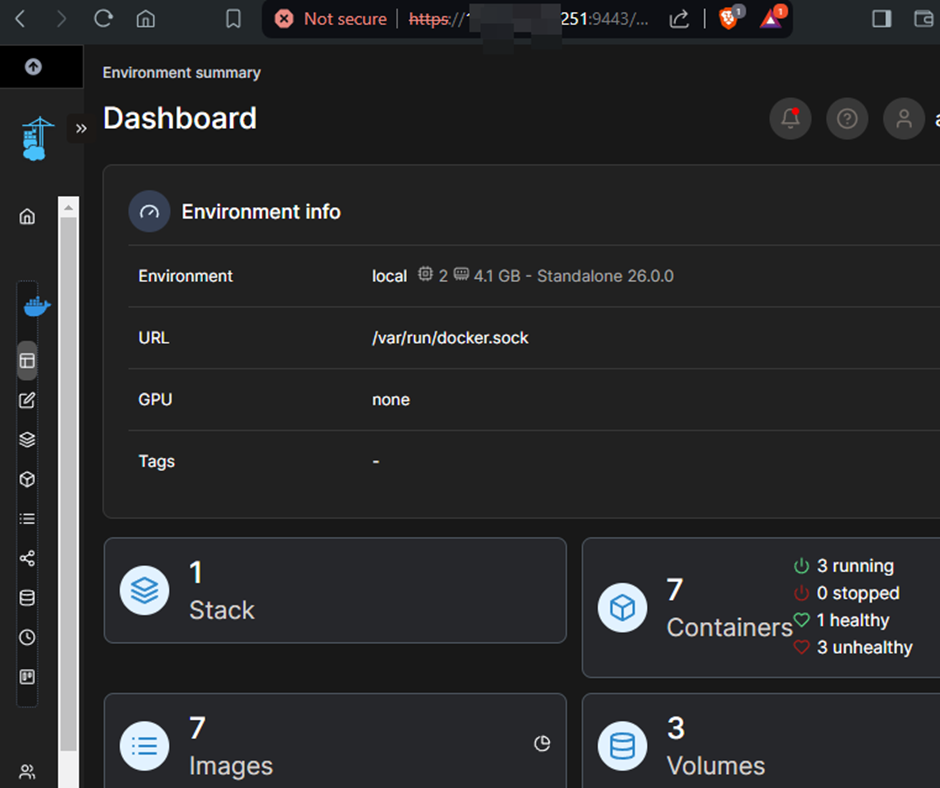
Final Out Put Expected

|
| Azure-VM: with only Private address |
|
| Portainer.io dashboard |
cAdvisor : Demo Docker-cadvisor-1 :
http://132.18.679.965:8080/containers/

|
| cAdvisor |
Prometheus : Demo Docker-prometheus-1 :
http://132.18.679.965:9090

Grafana : Demo Docker-grafana-1 : http://132.18.679.965:3000/login

|
| Grafana |
Docker instance 1 = http://132.18.679.965:32768/

Docker instance 2 = : http://132.18.679.965:32769/

Docker instance 3 : : http://132.18.679.965:32770/

***********************************************************************************
Appendix Version 1
Demo Docker-cadvisor-1


************************************************************************************************
Search description
Deploying Azure VM using Terraform + Adding monitoring using
cAdvisor, Prometheus, Grafana


Comments
Post a Comment