Enable additional Security layer for Logging into: Google, Facebook and Twitter
How to keep your Accounts safe
Updated for 2024
The most important part is to secure your .
There is an additional security step to certify your login. Known as
“2-Step Authentication”, now Multi-Factor Authentication.
Let us go through the steps how enable them, before that you have to
download the app as mentioned below.
 |
| 2-step from 2013 |
Download
-> “Authenticator” app from Google Play Store.
https://play.google.com/store/apps/details?id=com.google.android.apps.authenticator2&pcampaignid=web_share

|
| Google authenticator app |
Google:
Login into account:

|
|
Img: Google Account Tab |
-> Select “MY Account”
-> Under “Sign-in & Security”
-> Under “Signing in to Google” -> Under “Password & sign-in method”
-> Select “2-Step Verification” -> Click to enable them and
flow through the steps provided.
-> Open “Authenticator” app, Scan the code and complete the workflow.

|
|
Image 2017 |
2024 Multi-Factor Authentication:

|
| 2024 image |
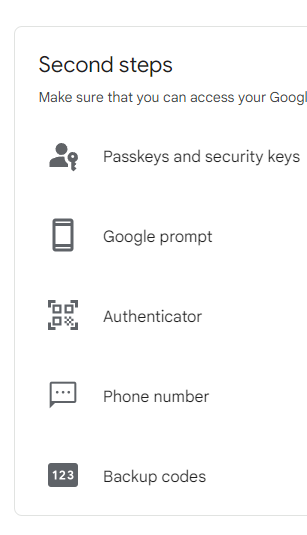
2024: 2-Step Verification Settings
|
| 2024: 2-step menu |
2024: Enhanced Browsing
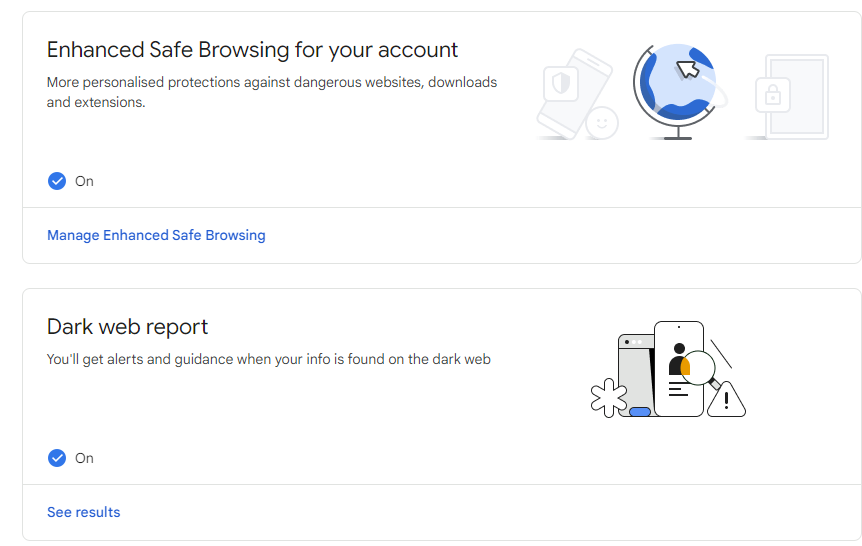
2024 Dark web report
Enable the Dark web report to get info on any data breaches.

|
| Data breach results |
*****************************************
Facebook:
Login into Account
-> Select “Settings” -> under “Security and Login”
-> Under “Setting Up Extra Security”
-> Select “Use two-factor authentication”
-> Under “Code Generator”
-> Select “Set up a third party app to generate codes”
-> Open “Authenticator” app, Scan the code and complete the
workflow.
Authenticator app
|
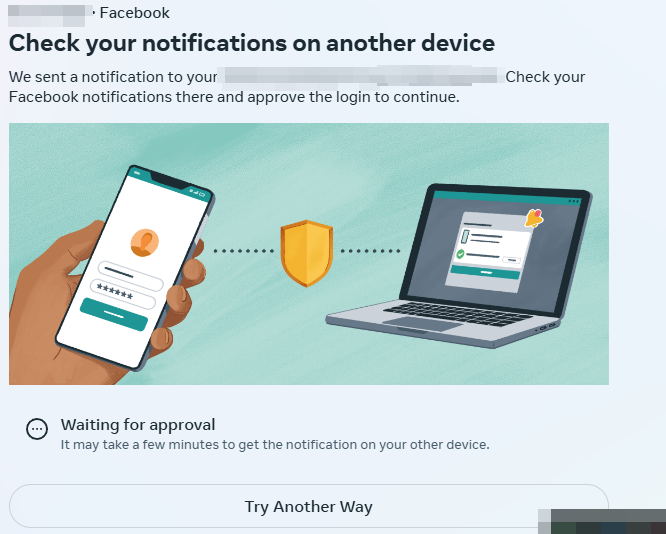
| 2024 FB Sign in approval notifications |

|
| 2024: FB account setup menu |

|
| 2024 FB 2-step |
*****************************************************************
Twitter:
Login into Account
-> Select “Settings and Privacy”
-> Under Security -> “Select a code generator app”,
follow the steps as followed.
-> Open “Authenticator” app, Scan the code and complete the
workflow.

|
| 2024: Twitter [ X ] Account Menu |

|
| 2024: 2-Step Menu |
#Initial Published on 16 May 2017

Comments
Post a Comment